Internal Point and Internal Line Operations
This section is used to add, edit, and delete internal points and internal lines within a digitized piece.

 Add Internal Point
Used to add an internal drawing point inside the digitized piece.
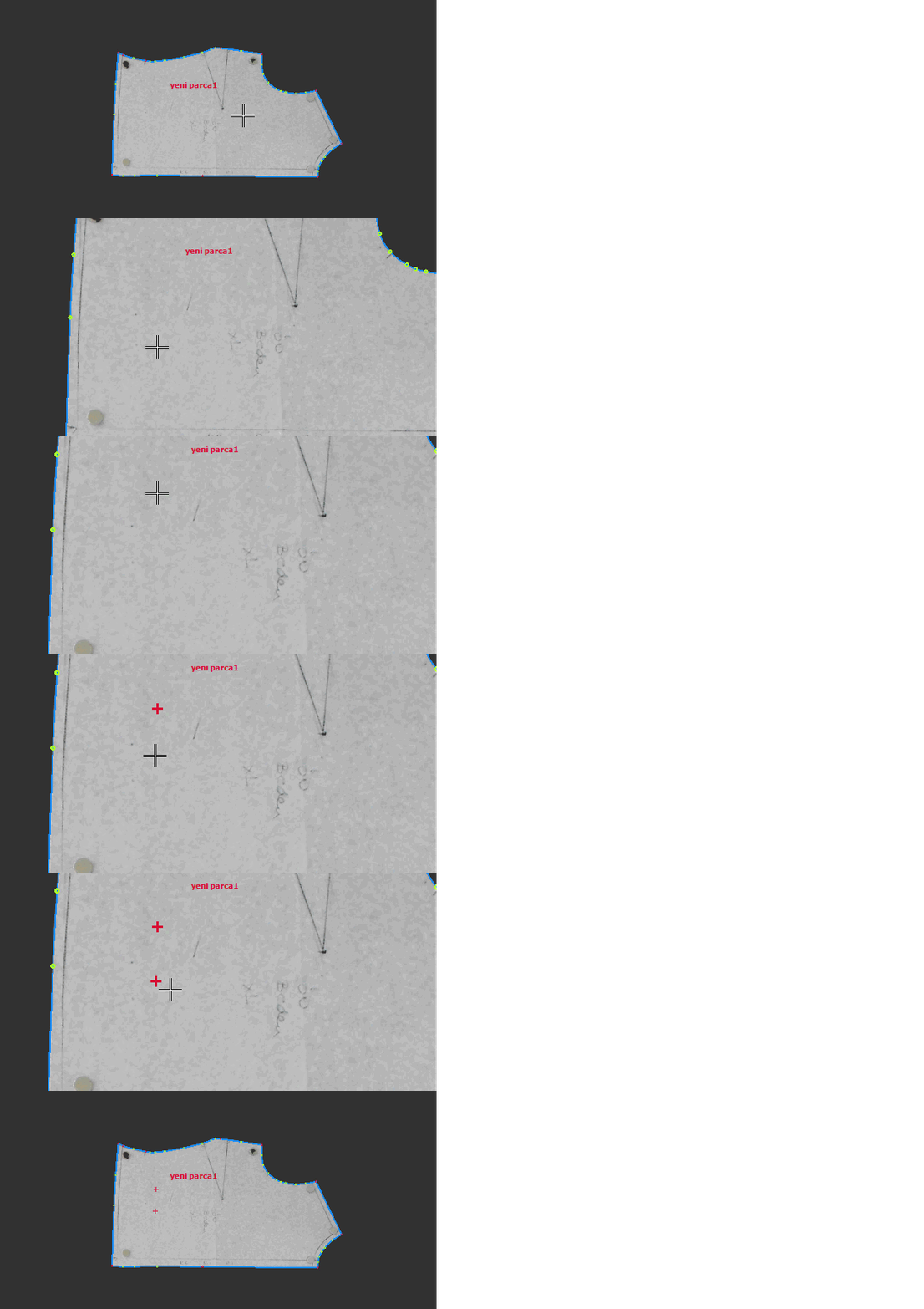
1.) Select the Add Internal Point function from the top menu.
2.) Click on the desired location inside the piece to place the internal point. (Drawing points are shown in red.)
 Add Internal Point (Drill)
Used to add an internal drill/punch point inside the digitized piece.
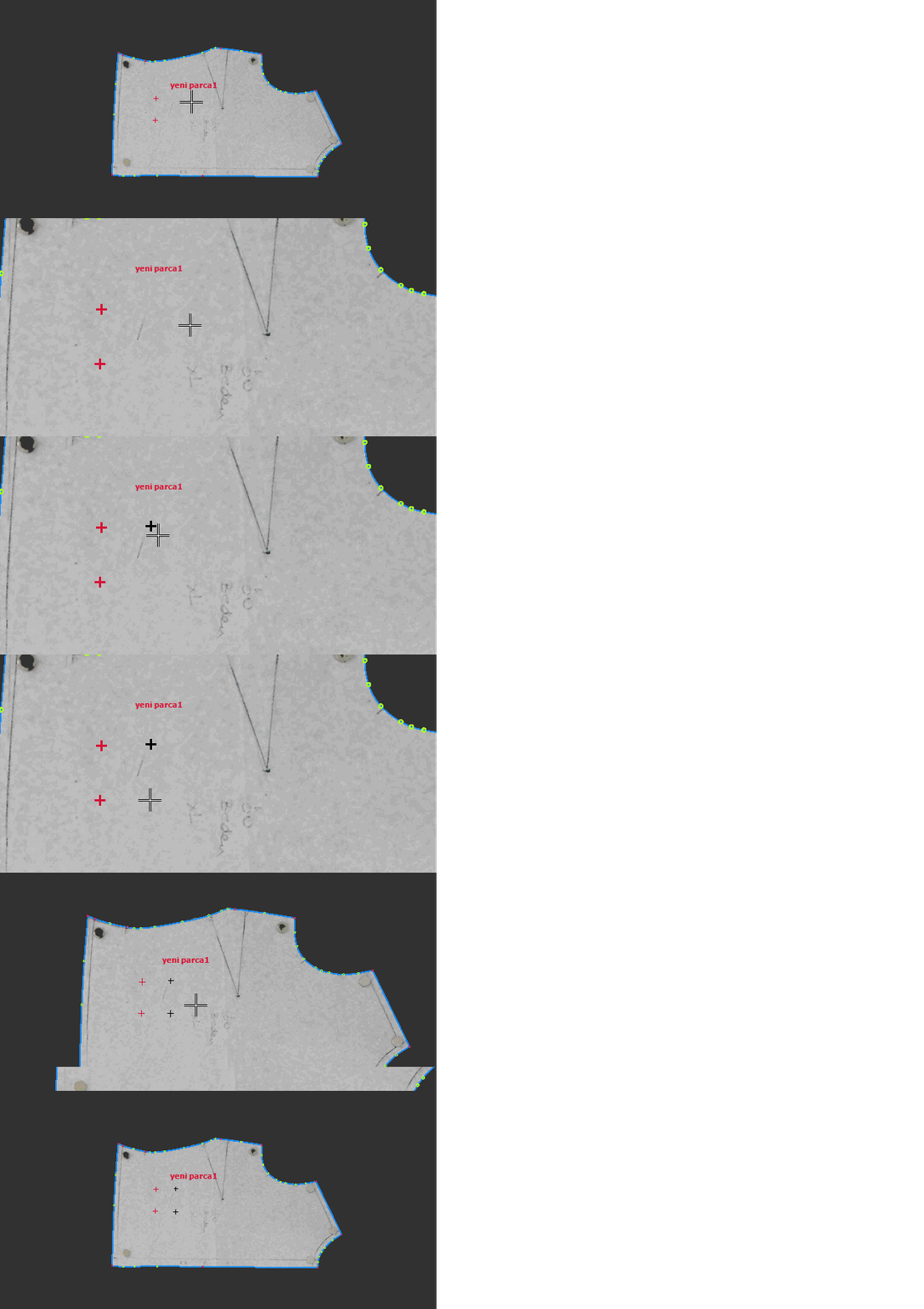
1.) Select the Add Internal Point (Drill) function from the top menu.
2.) Click on the desired location inside the piece to place the point. (Punch/drill points are shown in black.)
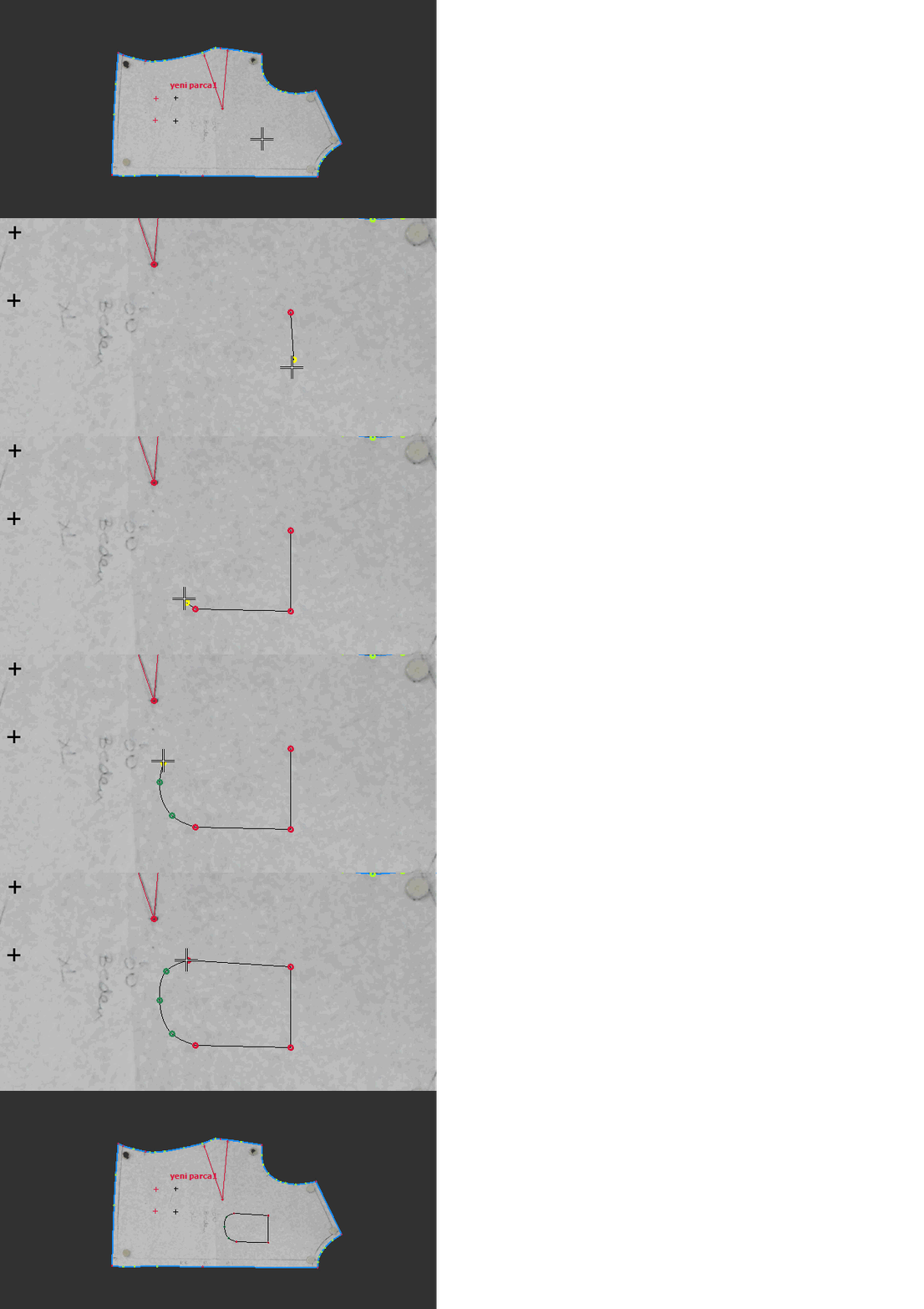
 Draw Internal Line
Used to draw an internal line inside the digitized piece.
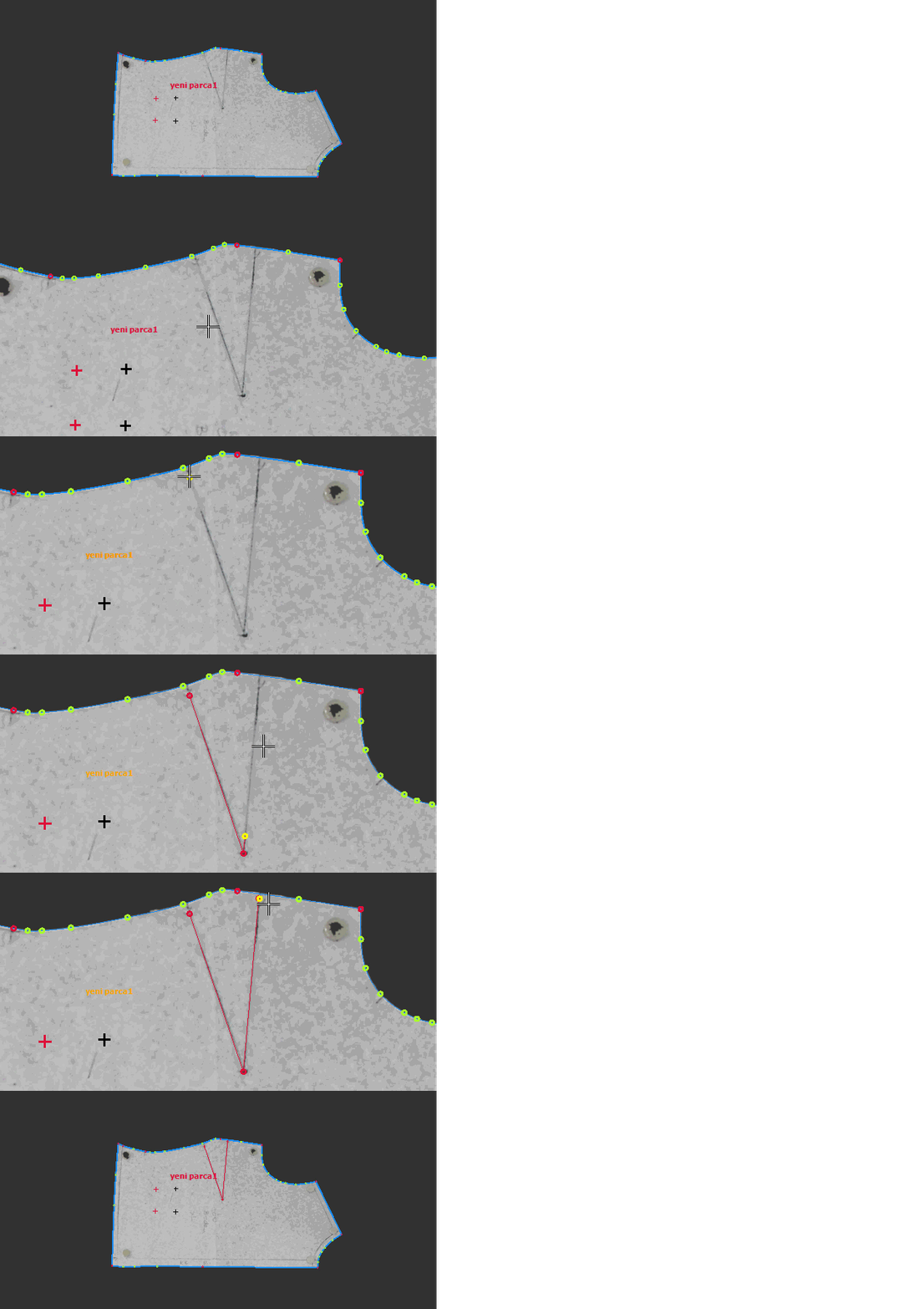
1.) Select the Draw Internal Line function from the top menu.
2.) Click to define the starting point inside the piece.
- Left mouse button: adds a corner point (red)
- Right mouse button: adds a curve point (green)
3.) To close the line, double-click to connect it to the starting point. To leave the line open, press the Enter key.
 Draw Internal Line (Cut)
Used to draw an internal line for cutting inside the digitized piece. The process is the same as Draw Internal Line.
Use the Draw Internal Line (Cut) function from the top menu. The internal cut line will be transferred to DesignCad as a cutting command.
 Move Internal Line
Used to move all internal lines and points (including drawing, punch, and cut features) within the piece.
1.) Select the Move Internal Line function from the top menu.
2.) Select the internal line or point with the mouse and drag it to the desired position. Release the mouse button to complete the operation.
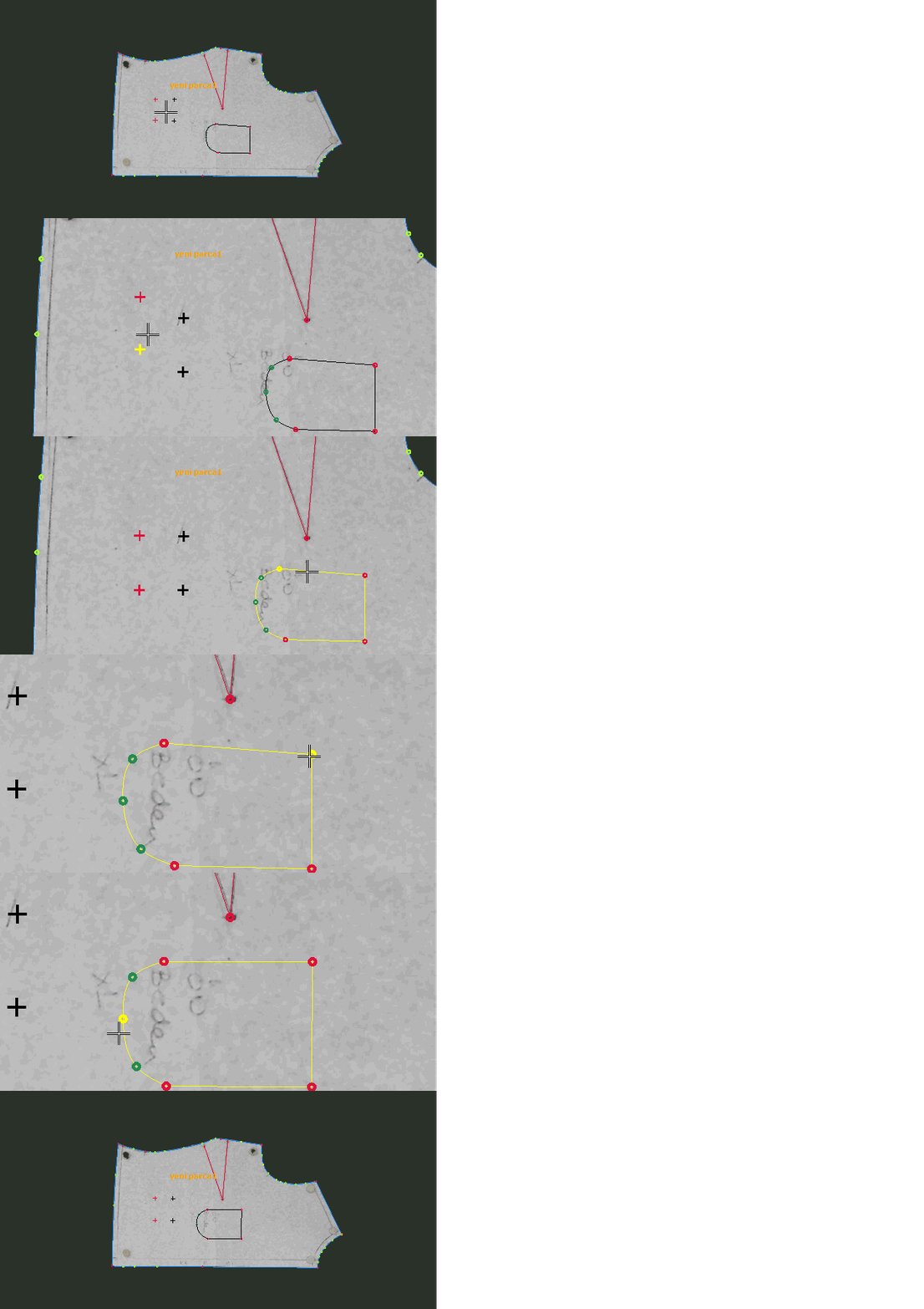
 Alternatively, internal line points can be adjusted using the Move Point
  function from the top menu.
 Delete Internal Line
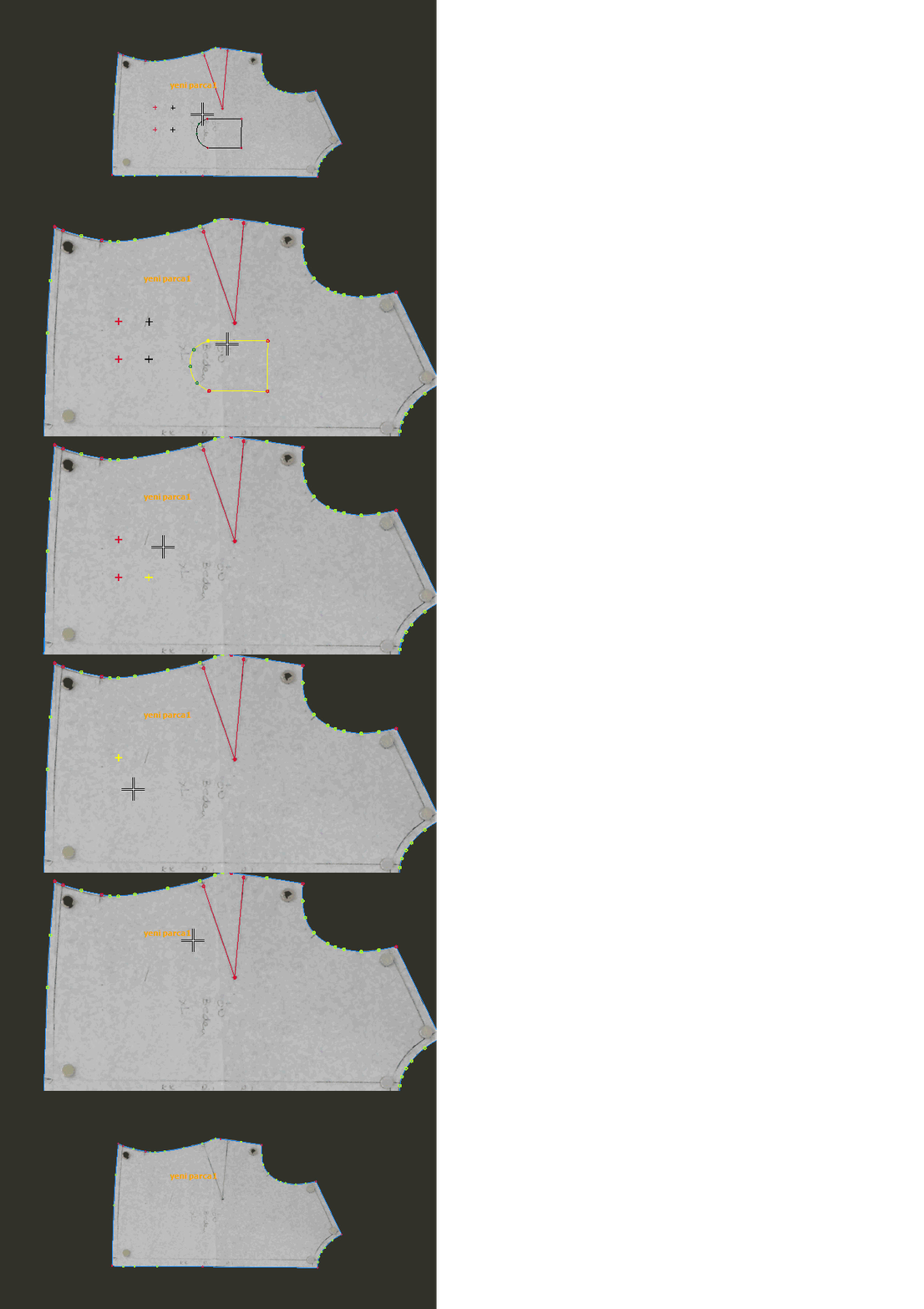
Used to delete all internal lines and points (including drawing, punch, and cut features) inside the piece.
1.) Select the Delete Internal Line function from the top menu.
2.) Click on the internal line or point to remove it.
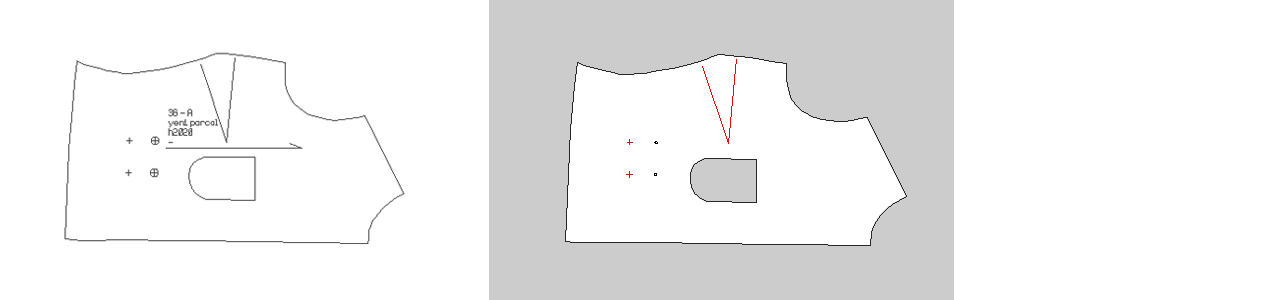
The resulting appearance of internal points and lines on plotting and cutting machines will be as shown below.