Saving Procedures
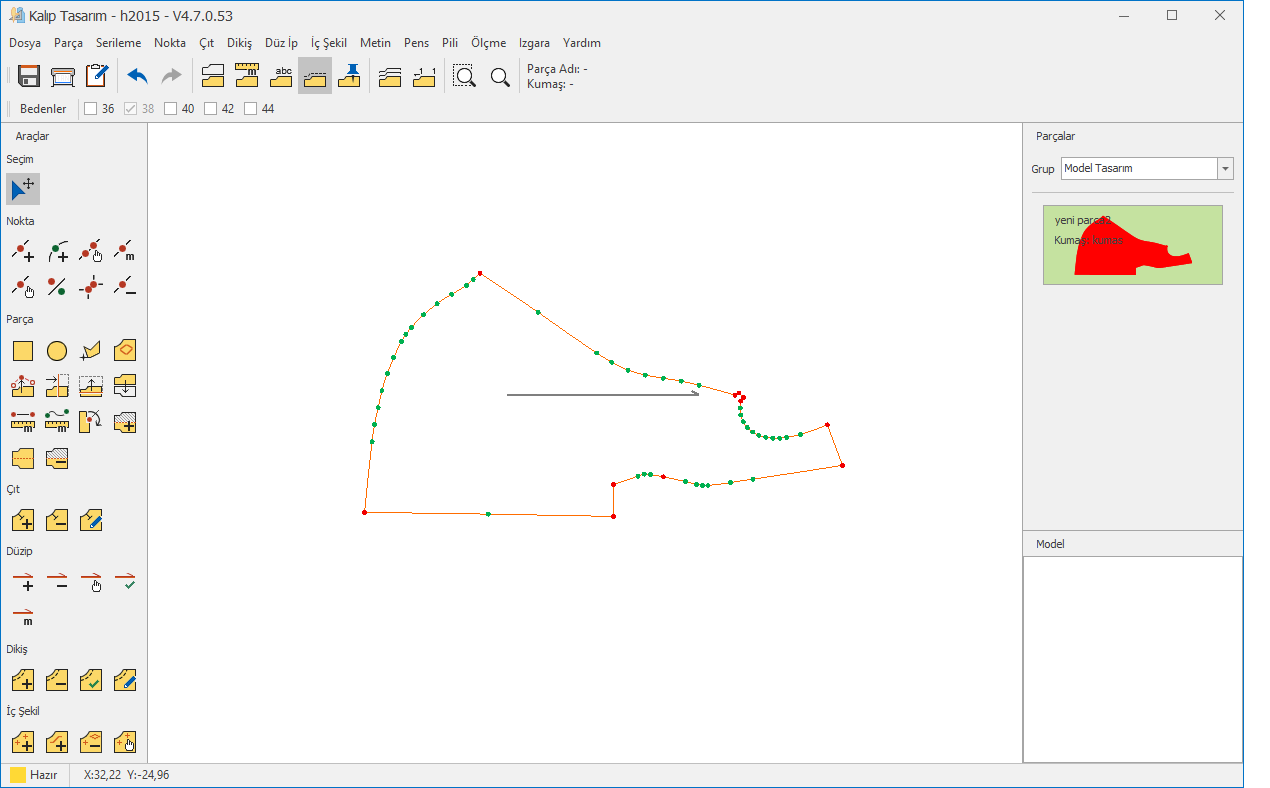
After completing the necessary edits on the digitized patterns, they can be saved to the DesignCad model library using the Save function located in the top menu.

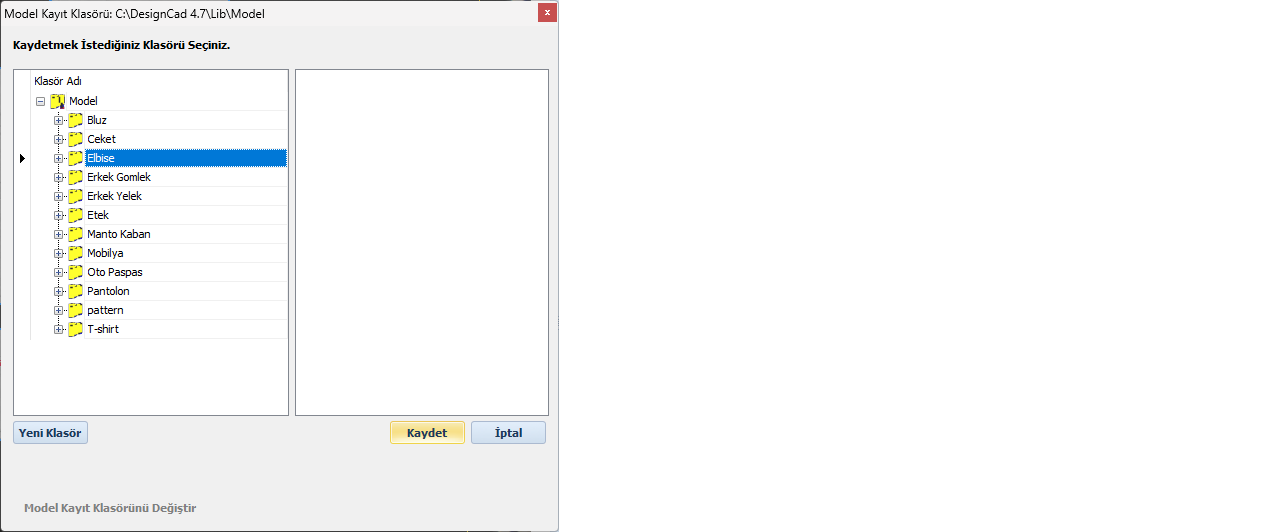
When the Save function is clicked, the Model Library window opens. This library represents the main model library of your DesignCad software.
In the library window, select the folder where you want to save the model and click the Save  button to complete the process.
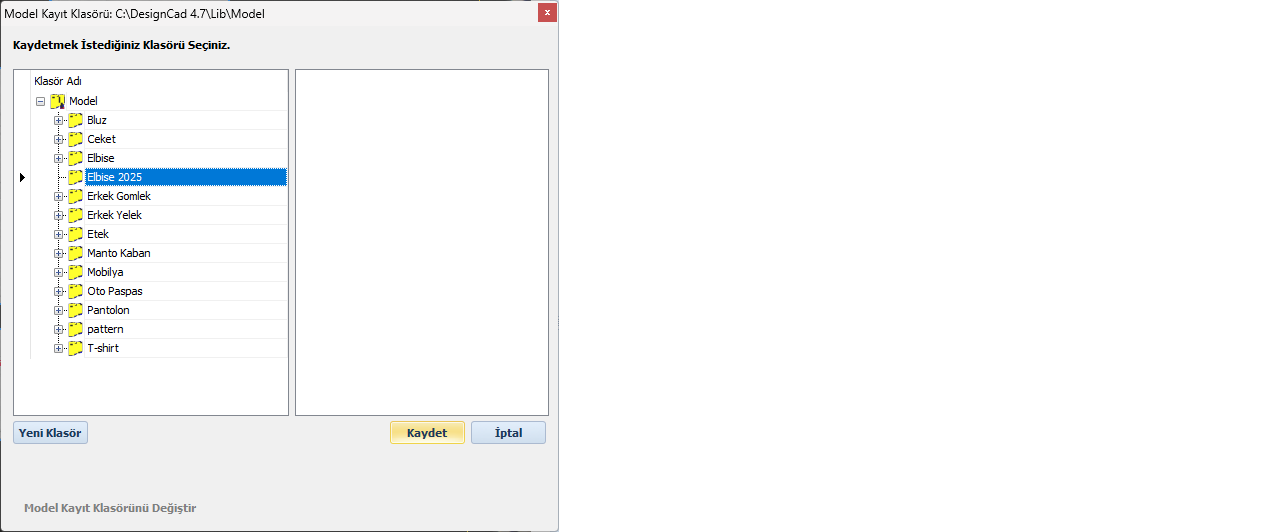
If needed, you can create a new folder in the DesignCad model library using the New Folder  button in the Model Library window, and save the model into this folder.
Enter the new folder name in the dialog window and confirm by clicking OK.

Changing the Model Library Location
If you want to change the model library location:
1.) Click the Change Path o ption located at the bottom left of the window.
2.) Confirm the warning message by clicking OK.

3.) In the Browse for Folder window, select a new library location and confirm with OK.
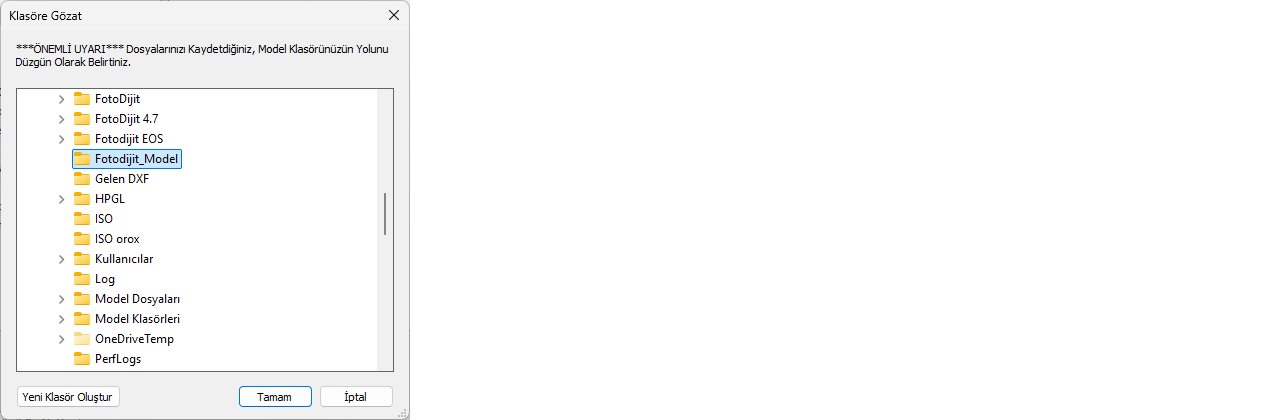
 | BAfter this process, your new save location will be the selected folder. If you do not define this location as your DesignCad model library, you will not be able to open the digitized models in the DesignCad software. |
If you want to save only one piece in Fotodijit;
1.) After completing the digitizing process, right-click on the piece you want to save.
2.) From the context menu, select: Export → Fotodijit (Selected Piece)
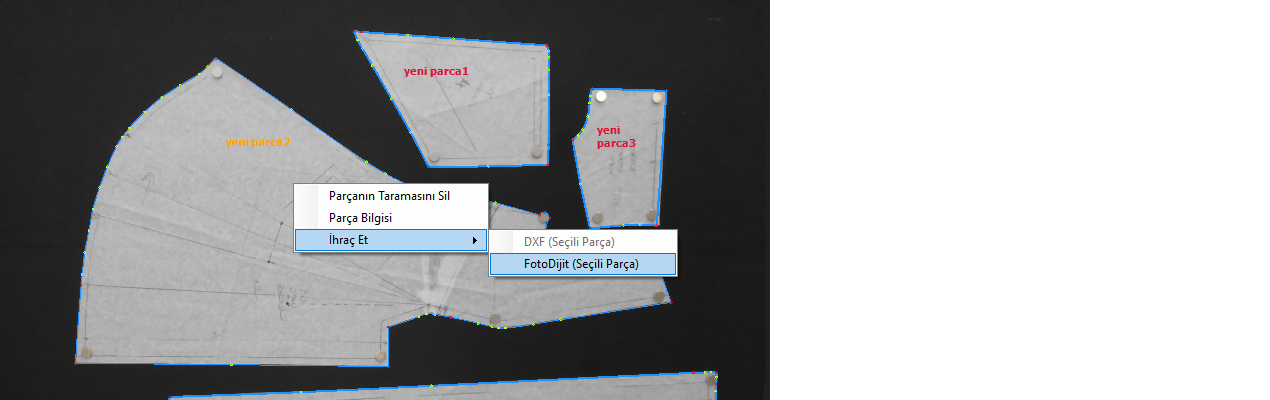
3.) In the Model Save Folder window, select the destination and click OK to complete the saving process.
4.) The piece saved using this function will be transferred to DesignCad as a single piece.