Point Operations
After the scanning process is completed, edits and operations can be performed on the points that define the digitizing line.
 |
|

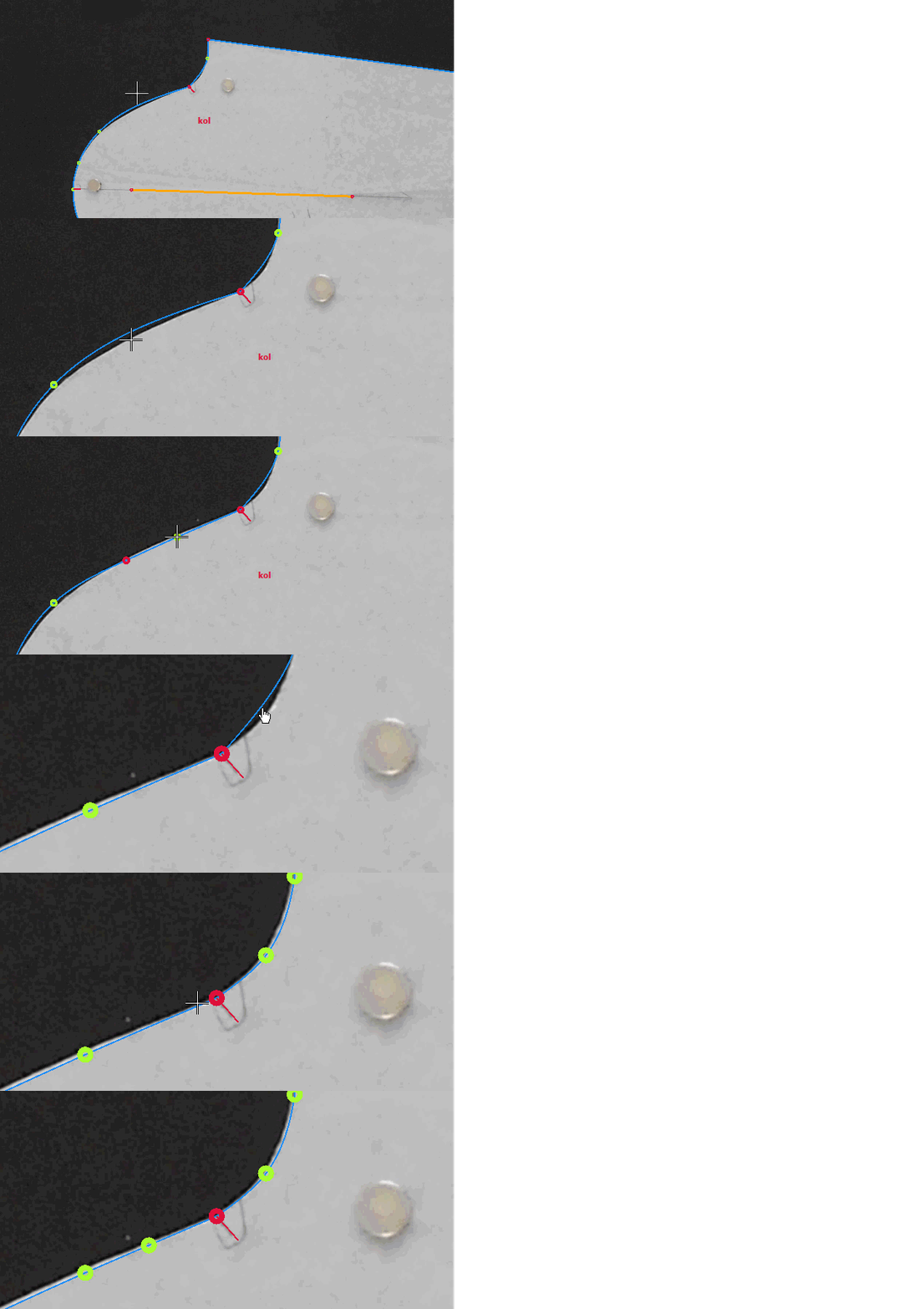
 Add Point
Used to add points to the digitizing line after the digitizing process is completed.
After selecting the function from the top menu, click on the desired location on the digitizing line:
- Left mouse button adds a corner point (red)
- Right mouse button adds a curve point (green)
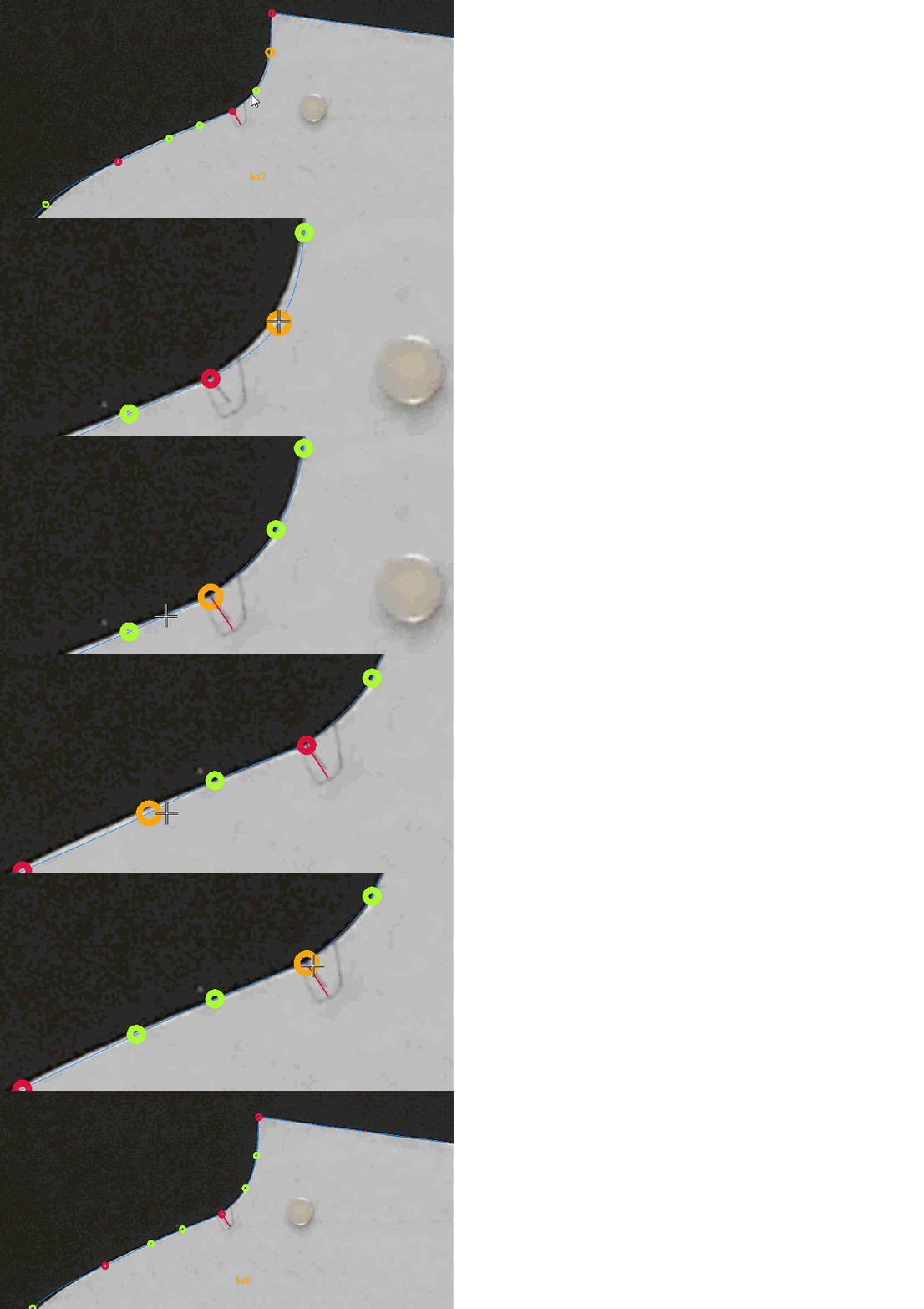
 Move Point
Used to move points on the digitizing line.
After selecting the function from the top menu, select the point to be moved with the mouse, then drag it to the desired position while holding the mouse button.
 Delete Point
Used to delete unwanted points on the digitizing line.
After selecting the function from the top menu, click on the point to be deleted on the digitizing line. The selected point will be removed.
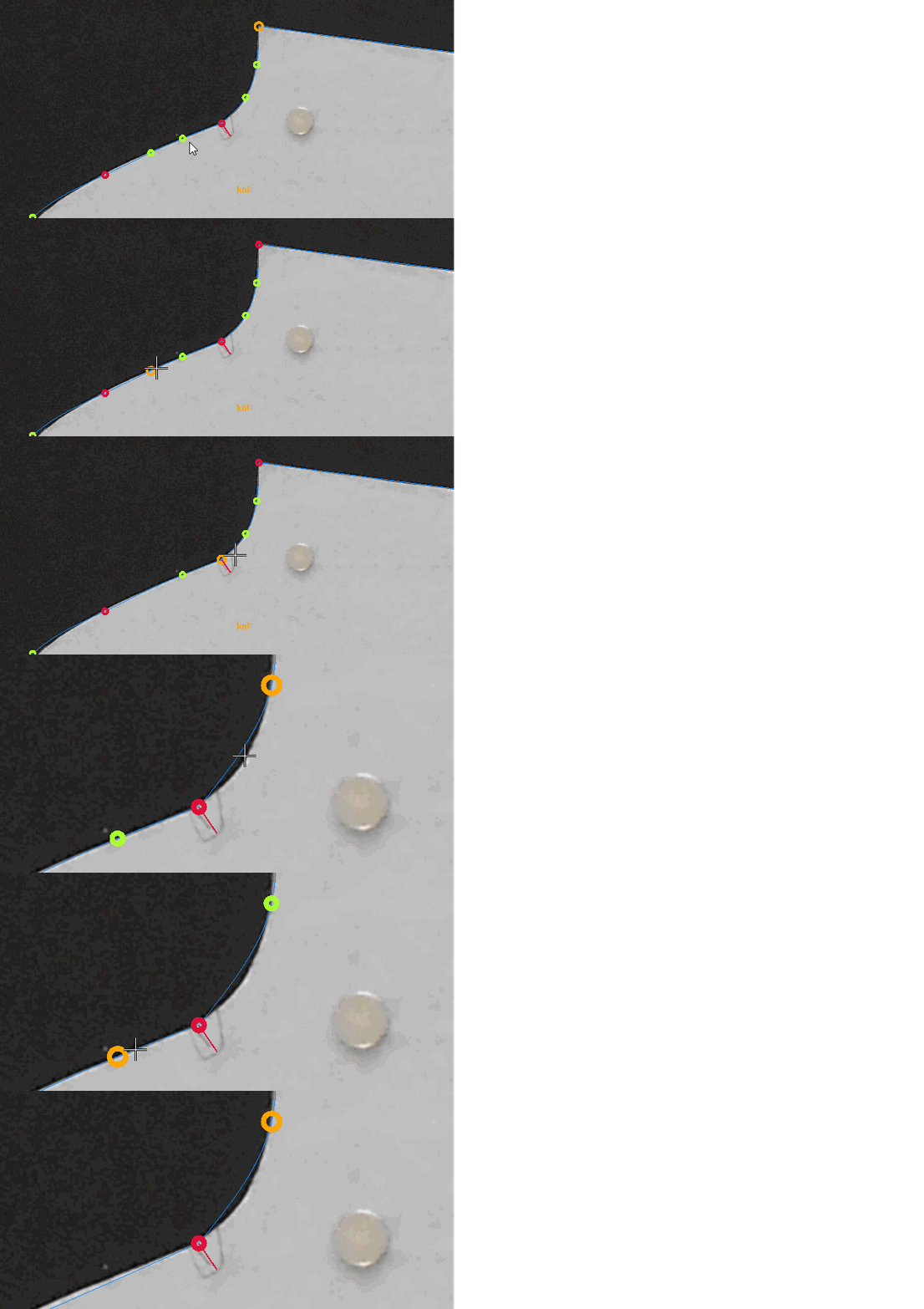
 Change Point Type
Used to change the type of points on the digitizing line after digitizing.
After selecting the function from the top menu, click on the point whose type will be changed:
- If the selected point is a corner point, it becomes a curve point
- If it is a curve point, it becomes a corner point
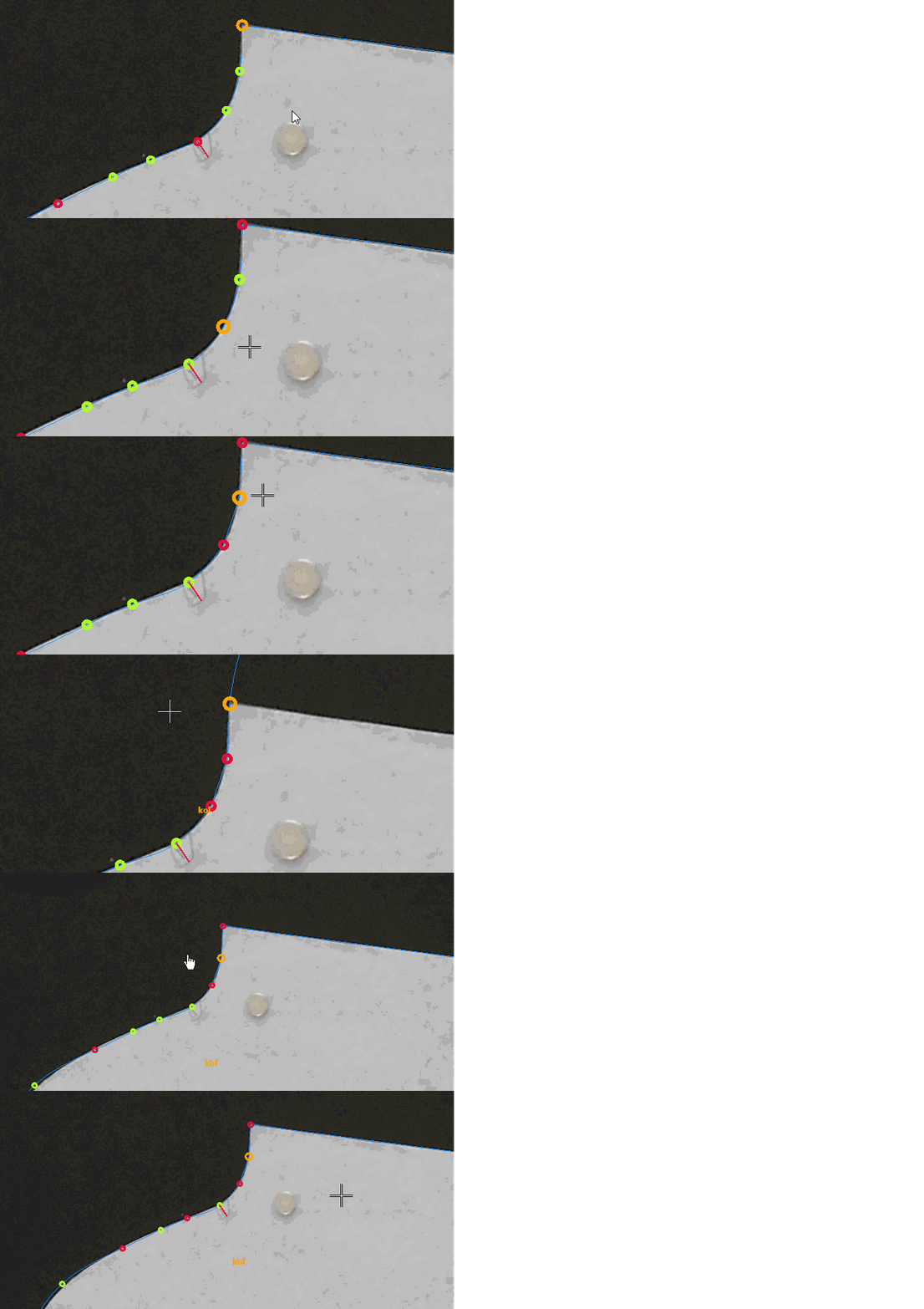
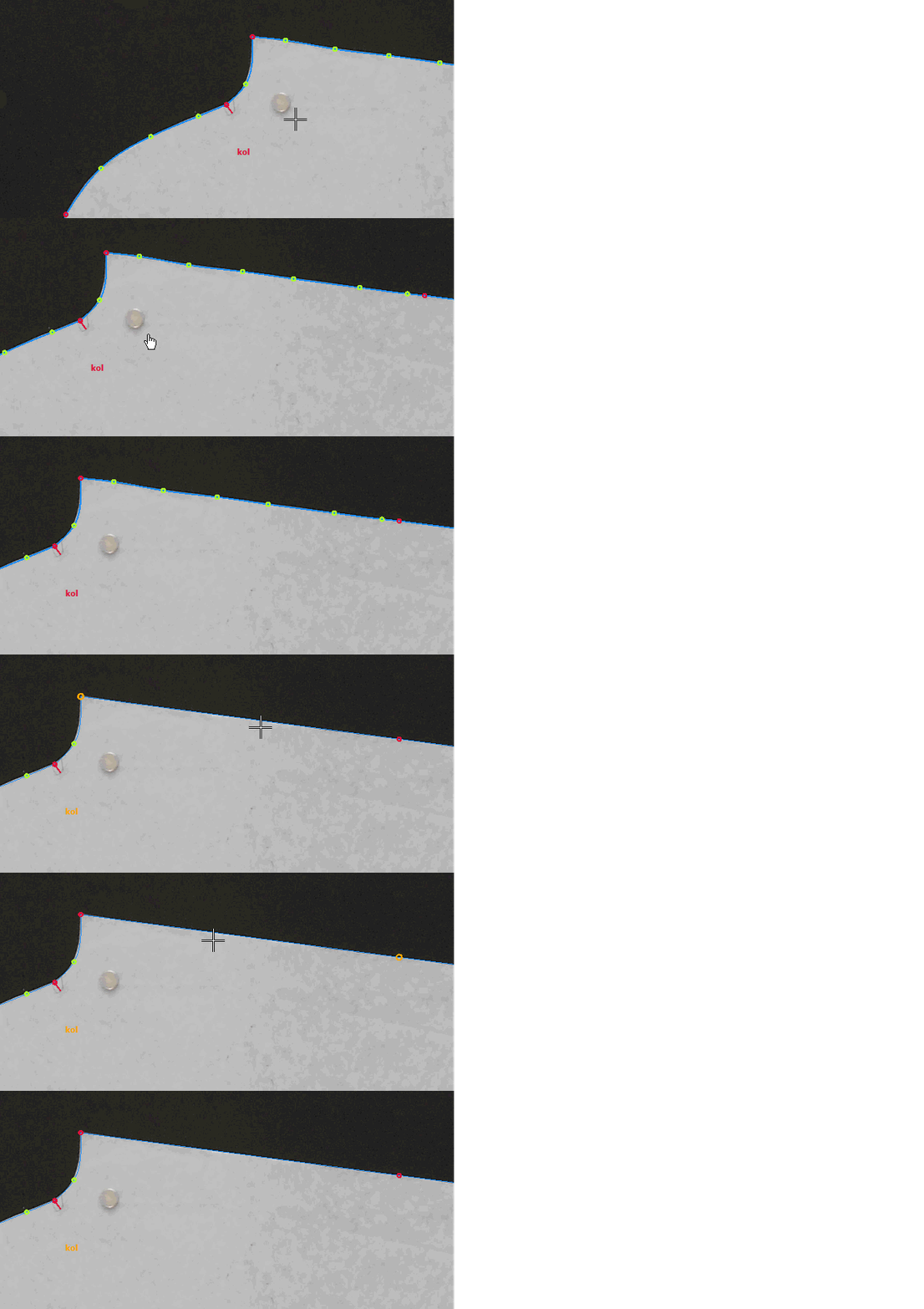
 Delete Intermediate Points
Deletes all curve points (green) between two corner points (red) on the digitizing line.
After selecting the function from the top menu, click on any of the curve (green) points to remove all curve points located between the corner (red) points.