Scanning Operations
After the image capture process is completed, the patterns are transferred into the digital environment.
If the captured image is suitable for scanning, click the Start Scanning  button from the top menu to begin the digitizing process.

- The scanned pattern is filled with a blue color and automatically assigned a piece name at the end of the process (e.g., new piece 1, new piece 2, etc.).
- During the scanning process, click the Stop Scanning
 icon to pause the operation, and click the Continue Scanning
  icon to continue.
If the scan cannot be completed due to insufficient lighting or the color of the pattern, stop the scanning process. Then, open the menu next to the Scan Mode section in the top menu and adjust the scanning sensitivity. After changing the sensitivity level, continue the scanning process.

In the displayed window, M 100 represents the lowest sensitivity level, and M 500 represents the highest. The optimum scanning value can be determined with one or two test attempts. If the captured image meets the required scanning conditions, it is recommended to keep the mode set to Automatic by default.
If there are areas on the patterns that need correction before starting the scanning process, click the Pen icon in the right-side panel to make the necessary adjustments.

 Click the button, then left-click on any color in the image to begin painting with that color. As long as the left mouse button is held down, painting continues using the same selected color.

 The action performed with the Undo button can be reverted.
 butonu ile yapılan işlem kaydedilir.
 From the Brush Size section, the pen tip size can be adjusted (with 1 being the smallest and 10 being the largest).
Delete Digitizing
This function is used to delete the digitizing data of a single piece or all pieces.
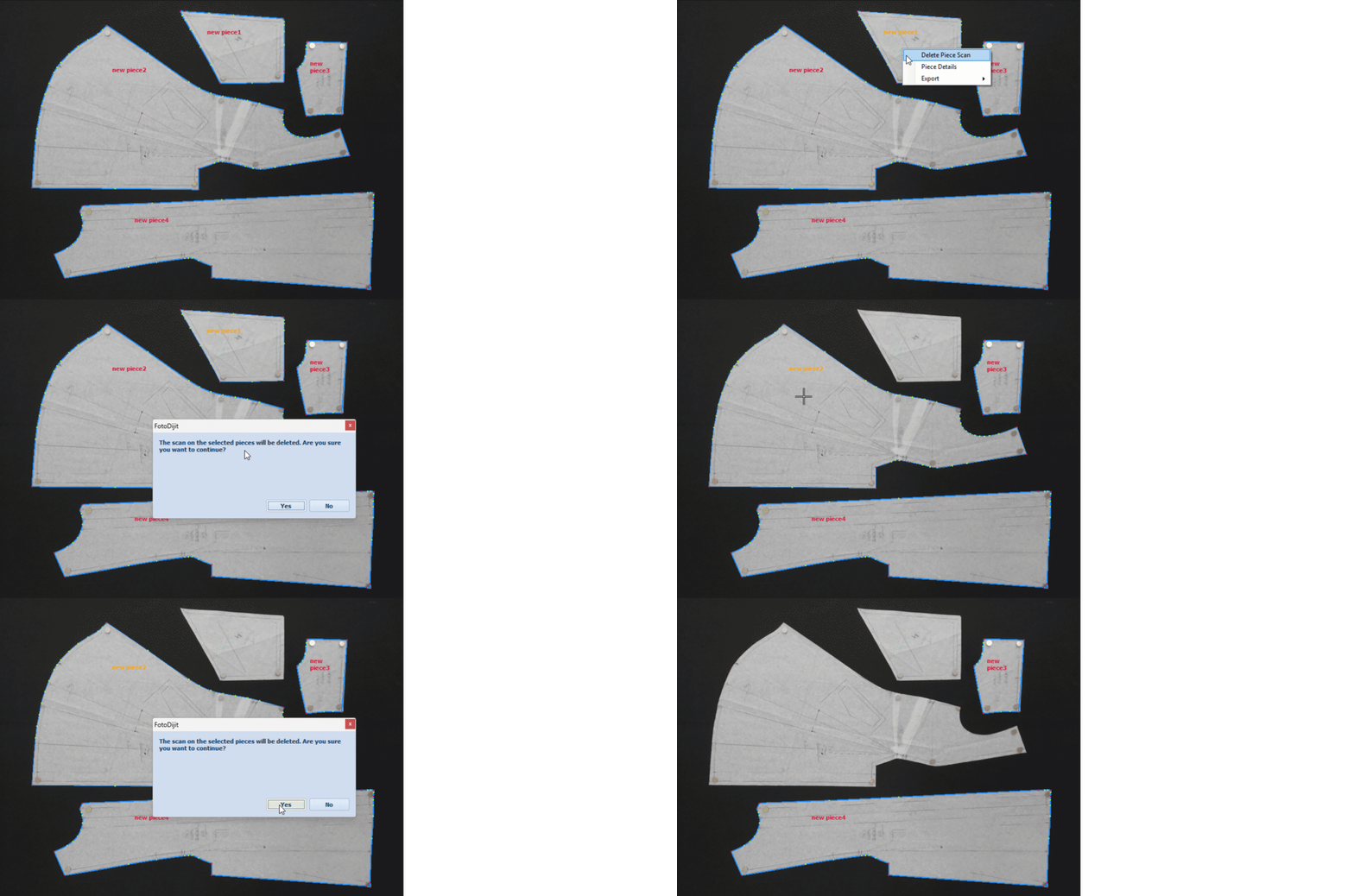
To Delete the Digitizing of a Single Piece
To remove the scan of a digitized piece, right-click on the piece.
- From the menu that appears, select Delete Piece Scan.
- This operation deletes only the digitizing data of the selected piece.
To Delete the Digitizing of All Pieces
From the top menu, open the Digitize menu and click Delete Digitizing.
In the warning message that appears, click OK to delete all digitizing data on the page.
