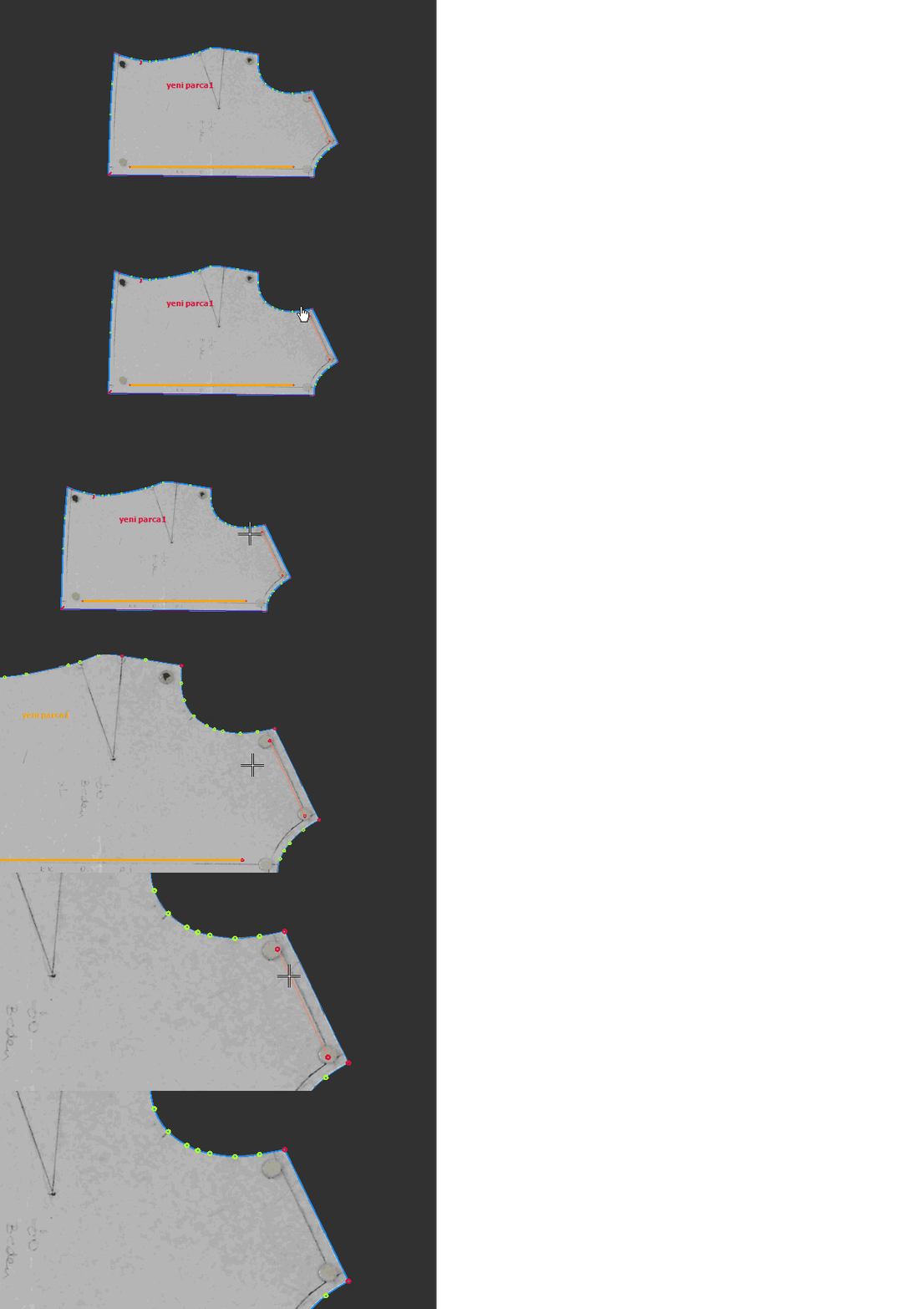
Notch and Grainline Operations

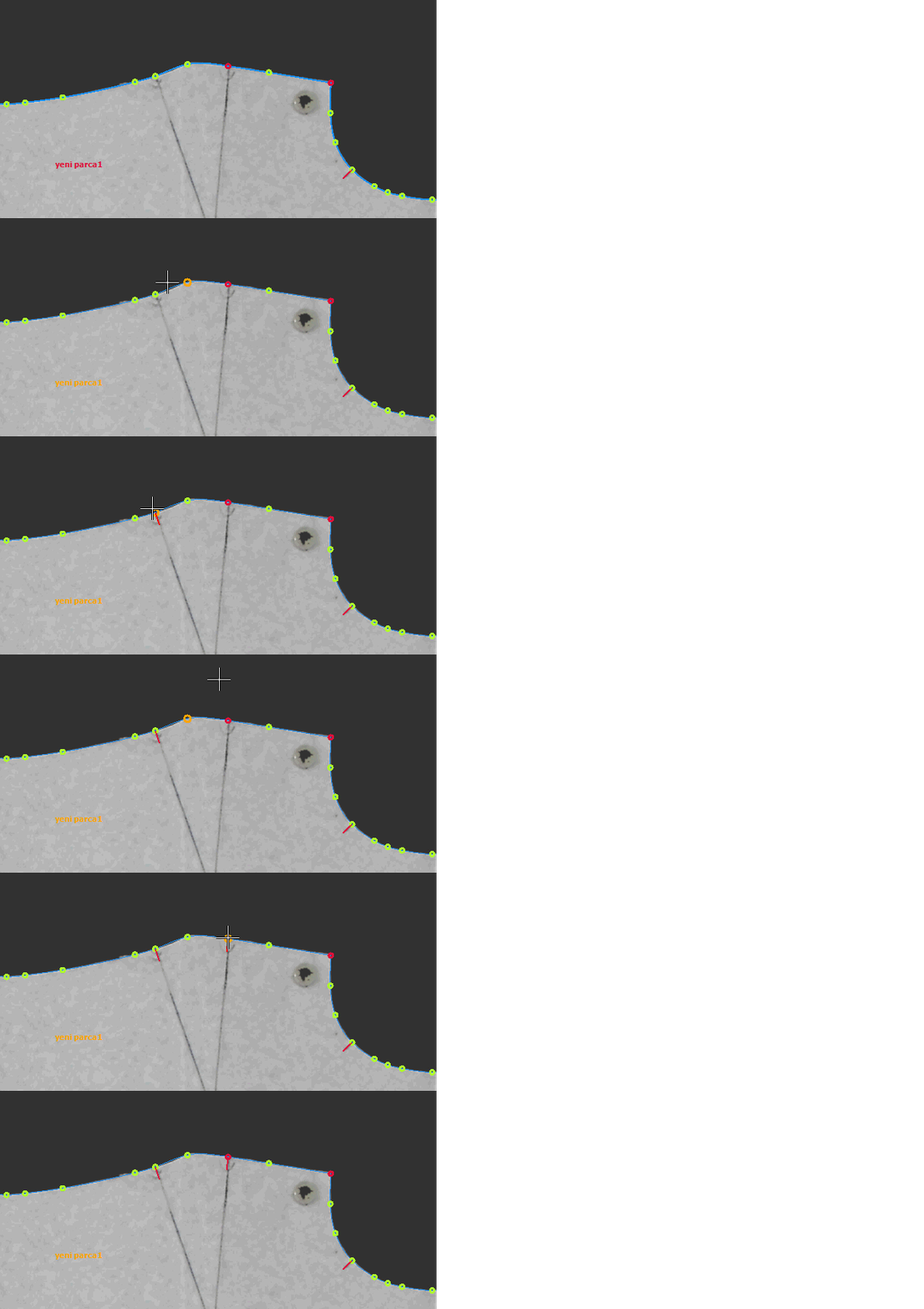
 Add Notch
If there are notch marks on the patterns captured with Fotodijit, they are detected during scanning and added automatically. If needed, notches can also be added manually after the digitizing process.
1.) Select the Add Notch function from the top menu.
2.) Click on the desired point on the digitizing line to add the notch.
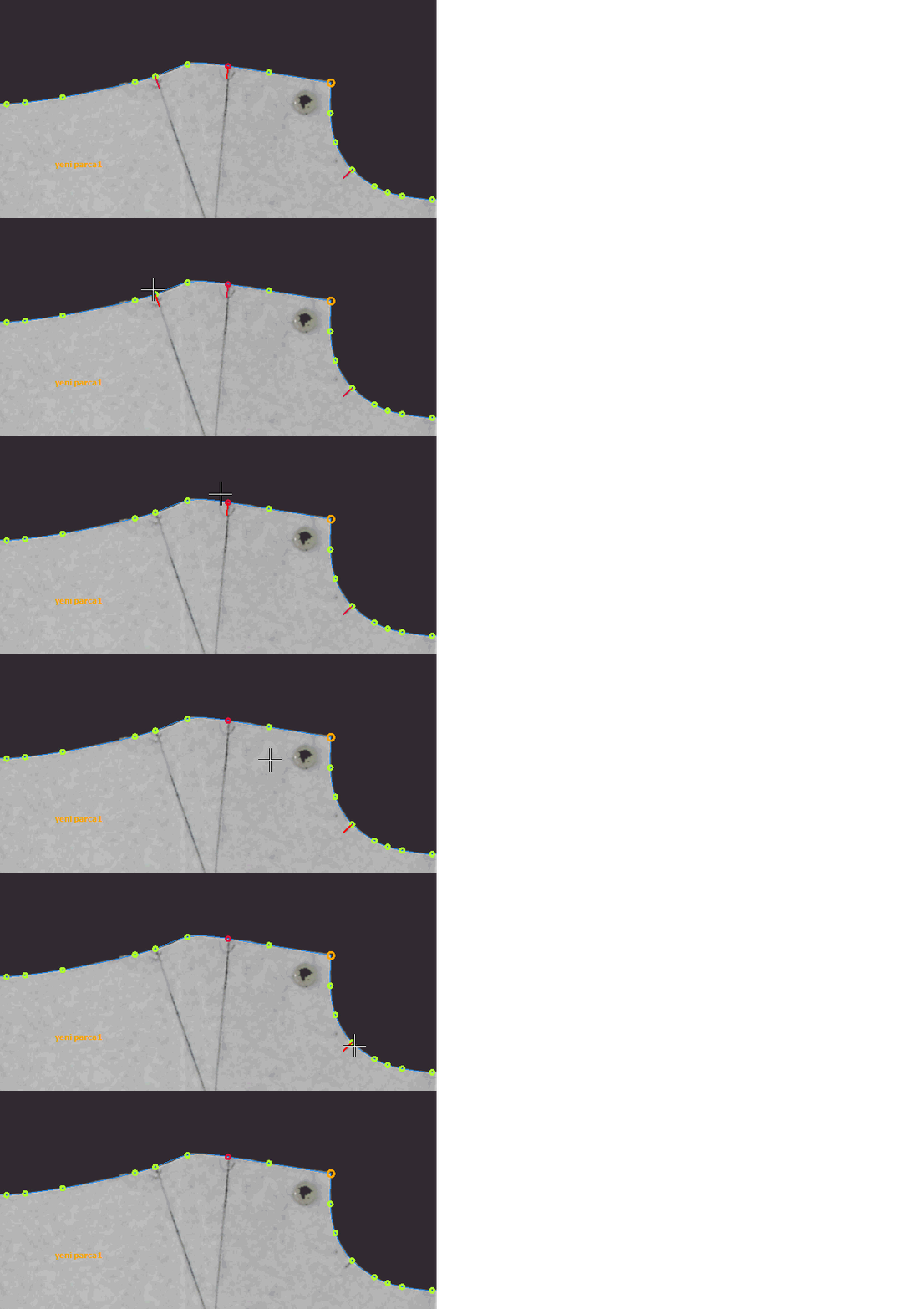
 Delete Notch
1.) Select the Delete Notch function from the top menu.
2.) Click on the notch to be deleted on the digitizing line.
Grain Line Operations
Used to add, move, or delete grain lines on pieces after the digitizing process.

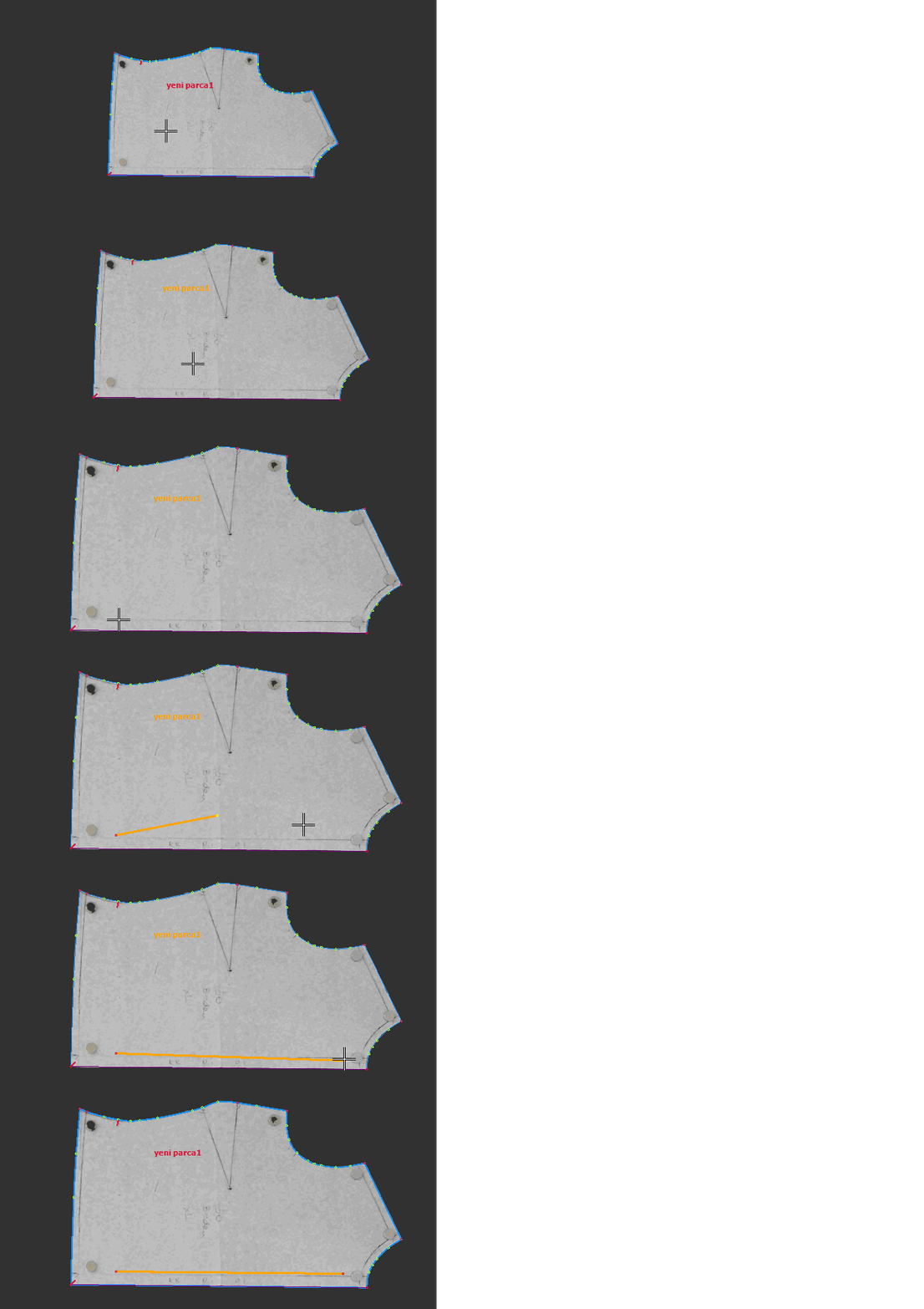
 Add Grain Line
1.) After completing digitizing, click Add Grain Line from the menu opened via the arrow next to the Grain Line function in the top menu.
2.) Click the starting point of the grain line inside the piece, drag with the mouse, and click the end point to define and add the grain line.
 Move Grain Line
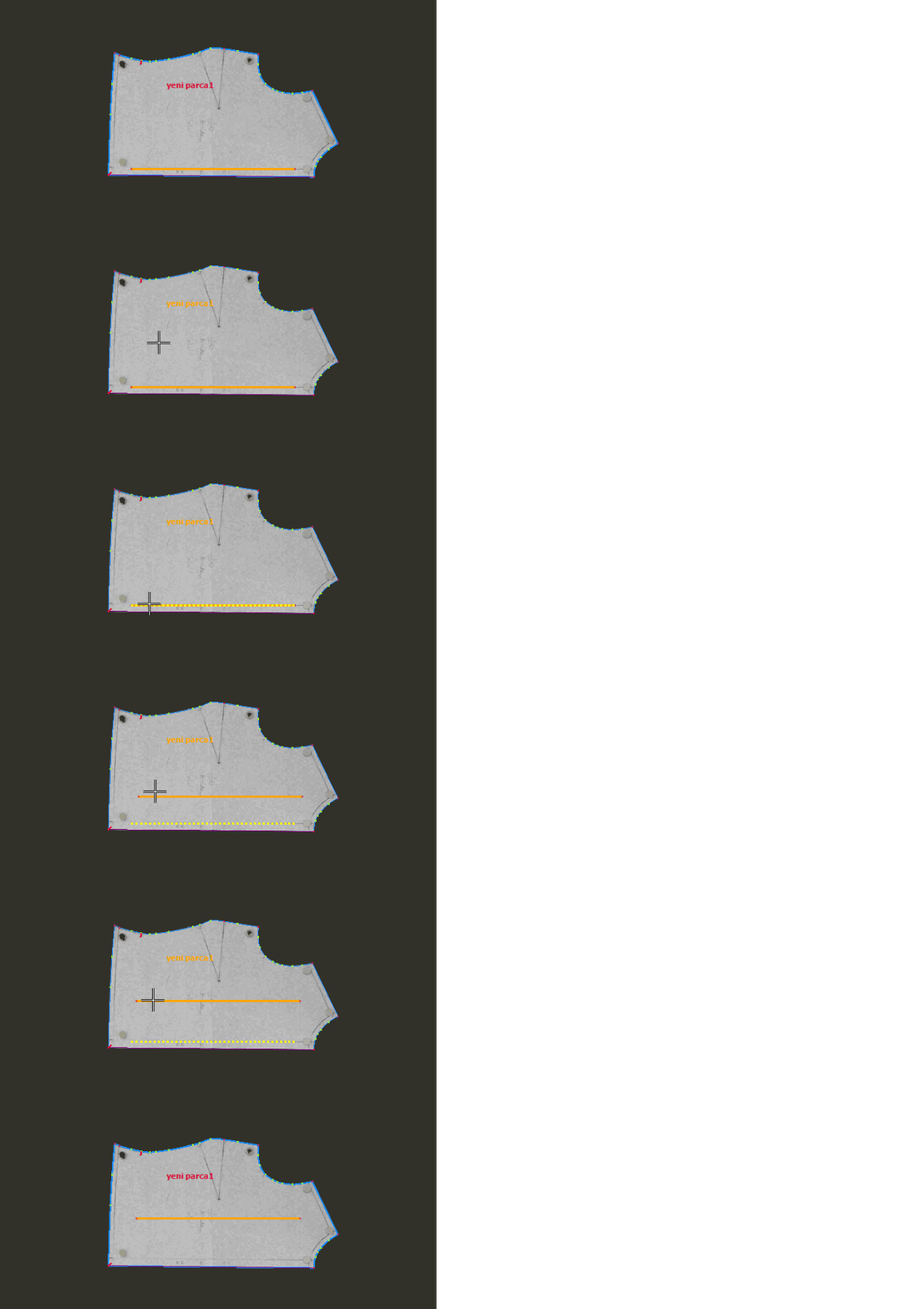
1.) To move an existing grain line, select Move Grain Line from the menu next to the Grain Line function.
2.) Select the grain line with the mouse, drag it to the desired position while holding the mouse button, and release to place it.
 Delete Grain Line
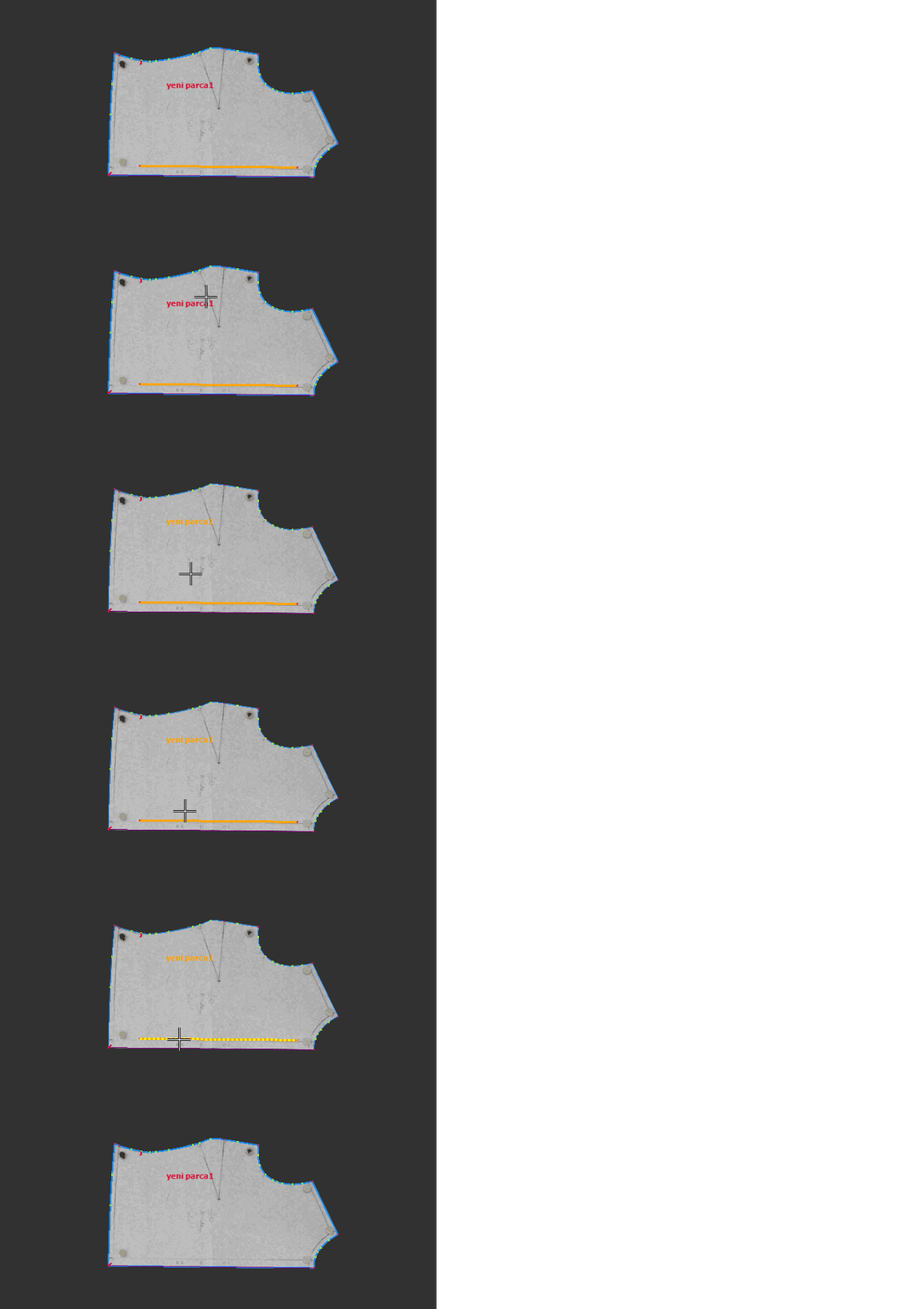
1.) To delete an existing grain line, select Delete Grain Line from the menu next to the Grain Line function.
2.) Click on the grain line to remove it.
Reference Line Operations
Used to add, move, or delete reference lines inside the piece after digitizing.
The reference line is transferred to the DesignCad software as a secondary grain line and can optionally be used as a grain line.

Add Reference Line
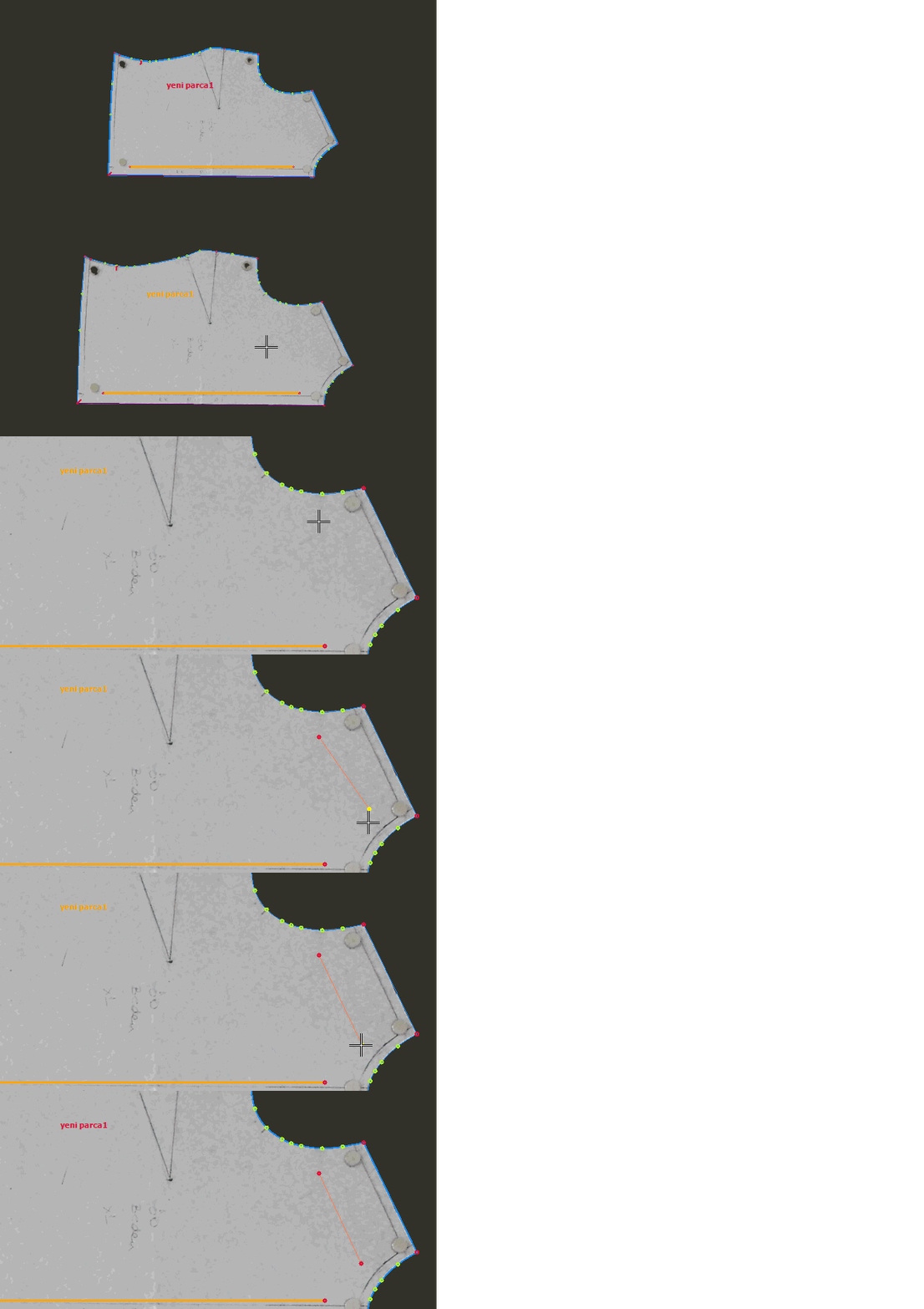
1.) After completing digitizing, select Add Reference Line from the menu next to the Reference Line function.
2.) Click the starting point inside the piece, drag with the mouse, and click the end point to define and add the reference line.
Move Reference Line
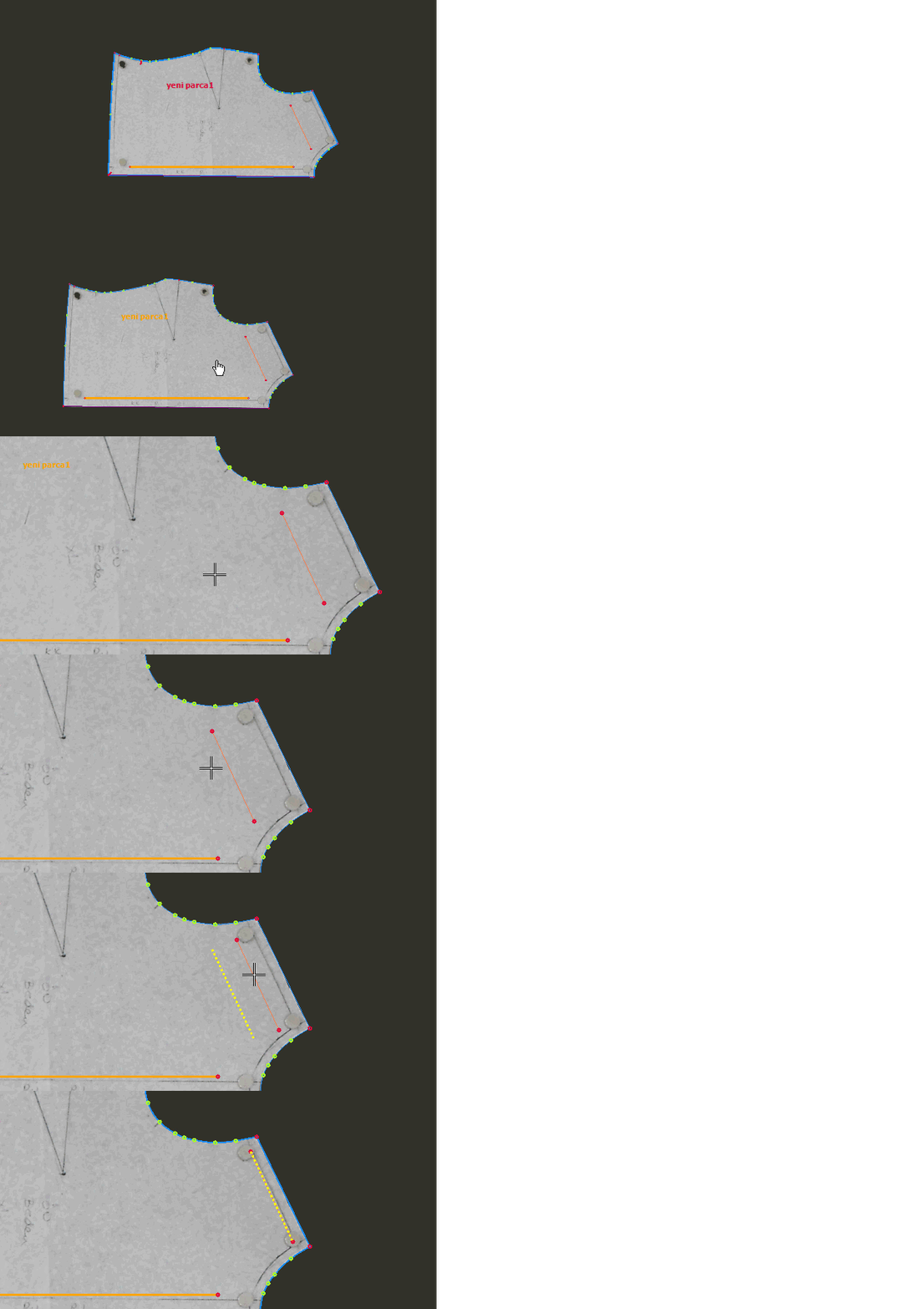
1.) To move a reference line, select Move Reference Line from the menu next to the Reference Line function.
2.) Select the reference line with the mouse, drag it to the desired position while holding the mouse button, and release to place it.
Delete Reference Line
1.) To delete a reference line, select Delete Reference Line from the menu next to the Reference Line function.
2.) Click on the reference line to remove it.